

Download Kiosk Software – Secure, Free Kiosk Mode for Windows, Mac, Android & iOS
Overview: Secure Kiosk Mode for Public and Business Use
Kiosk Software by Antamedia is a powerful, free tool designed to transform any Windows PC into a secure, locked-down public terminal. Ideal for libraries, schools, airports, hotels, and retail environments, this software ensures users can only access specific applications or websites—preventing unauthorized changes, system tampering, or inappropriate content exposure. The software operates in kiosk mode, restricting access to the desktop, taskbar, and system settings, providing a seamless and secure user experience.
Originally released in 2014 and regularly updated (latest version 2.8.3.0), Kiosk Software continues to be a trusted solution for organizations needing a reliable, no-cost kiosk system. The software supports multiple languages, including English, German, and Czech, making it accessible to a global audience. Despite being free, the software delivers robust features such as full-screen web browsing, application lockdown, and session management, making it a standout choice in the access control category.
With compatibility starting from Windows 7, Kiosk Software ensures broad accessibility across older and newer systems. Its lightweight design minimizes performance impact, making it suitable for low-end hardware in public spaces. Whether you're setting up a self-service kiosk, a digital signage terminal, or a computer lab station, this tool offers a streamlined way to maintain control without requiring technical expertise. The trial version allows users to test all core functionalities before deciding on a full deployment, giving organizations confidence in its reliability and ease of use.
Key Features of Kiosk Software – Built for Security and Simplicity
One of the strongest aspects of Kiosk Software is its comprehensive feature set, all designed with real-world kiosk deployments in mind. The software enables full-screen web browsing, allowing users to access only predefined websites while blocking all others. This is particularly useful in public libraries or hotel lobbies where guests need internet access without the risk of downloading malware or navigating to unsafe content.
Another standout feature is application lockdown. Administrators can restrict users to a single application or a predefined set of programs—perfect for digital signage, self-check-in kiosks, or interactive displays. The software also supports automatic restarts after a session ends, ensuring the kiosk is always ready for the next user. This automation reduces manual maintenance and downtime.
For added security, Kiosk Software includes features like password protection for admin settings, session timeout controls, and the ability to disable USB ports, keyboard shortcuts, and the Windows task manager. These measures prevent tampering and ensure the kiosk remains in a controlled state at all times. Additionally, the software logs user activity, which can be useful for monitoring usage patterns or troubleshooting issues.
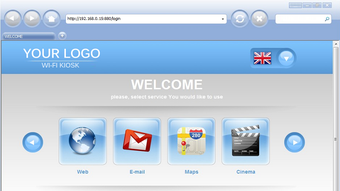
Users can also customize the kiosk interface with a branded splash screen and background image, enhancing the professional appearance of public terminals. With support for multiple kiosk modes—single application, web-only, or full kiosk—the software adapts to diverse use cases. Whether you're running a point-of-sale terminal or a customer feedback station, Kiosk Software provides the flexibility and control needed to maintain a secure, focused environment.
Installation & Usage: Simple Setup for Any User
Installing Kiosk Software is straightforward and requires minimal technical knowledge. Begin by downloading the trial version from the official Antamedia website. The installer is lightweight and runs smoothly on Windows 7 and later versions. Once downloaded, run the setup file and follow the on-screen prompts. The process typically takes less than a minute and does not require admin rights on most systems.
After installation, launch the software and access the configuration panel. Here, you can define the kiosk mode—choose between web-only, application-only, or a combination. For web kiosks, simply enter the URLs you want to allow. For application kiosks, browse and select the programs you wish to make available. You can also set a timeout duration, configure auto-restart, and enable or disable specific system functions like the taskbar or keyboard shortcuts.
Customization options include setting a background image, adding a welcome message, and configuring a password to access admin settings. Once configured, save the settings and restart the kiosk. The system will boot directly into the kiosk mode, presenting users with a clean, focused interface. To exit kiosk mode, use the admin password or a predefined hotkey sequence.
For organizations managing multiple kiosks, the software supports batch configuration via configuration files, enabling consistent deployment across several devices. This feature is especially useful in schools or large retail chains where uniformity is critical. Regular updates ensure the software remains compatible with new Windows versions and addresses security vulnerabilities, keeping your kiosks protected over time.
Compatibility & System Requirements
Kiosk Software is primarily designed for Windows operating systems, supporting Windows 7 and all subsequent versions, including Windows 10 and Windows 11. This wide compatibility ensures that even older hardware in public institutions can be repurposed as secure kiosks without requiring costly upgrades. The software is optimized to run efficiently on systems with limited resources, making it ideal for low-cost or legacy devices.
While the official version is for Windows, Antamedia also offers companion tools and solutions for Android and iOS devices, allowing organizations to extend kiosk functionality across mobile platforms. This multi-platform support is a significant advantage for businesses that want to maintain a consistent user experience across desktop and mobile terminals.
For Mac users, while there is no native Kiosk Software version, similar functionality can be achieved using built-in macOS features like Guided Access or third-party tools. However, for a fully integrated and feature-rich kiosk solution on Apple devices, users may need to explore alternative software options.
System requirements are modest: a minimum of 1 GB RAM, 100 MB of free disk space, and a standard graphics card. These low requirements mean the software can run on older PCs, Raspberry Pi setups, or even thin clients. The lightweight footprint ensures no lag or performance degradation during operation, even when multiple users access the kiosk in quick succession.
Pros and Cons: What You Need to Know
- Pros:
- Free to download and use with no hidden costs
- Supports multiple kiosk modes: web-only, app-only, or hybrid
- Strong security features: disables taskbar, keyboard shortcuts, USB ports
- Easy setup with intuitive configuration panel
- Auto-restart and session timeout for seamless operation
- Supports multiple languages: English, German, Czech
- Lightweight and runs well on older hardware
- Cons:
- No native support for Mac or Linux (limited cross-platform options)
- Advanced features require the paid version (trial has limitations)
- Interface is functional but slightly dated compared to modern apps
- Limited mobile support beyond Android/iOS companion tools
- Documentation could be more detailed for beginners
Frequently Asked Questions (FAQ)
-
Is Kiosk Software really free to download?
Yes, Kiosk Software offers a fully functional trial version that is free to download and use. While the full suite of advanced features may require a paid license, the trial allows you to test all core functionalities, including web filtering, application lockdown, and session management.
-
Can I use Kiosk Software on Windows 10 and Windows 11?
Absolutely. Kiosk Software is fully compatible with Windows 10 and Windows 11, as well as Windows 7 and 8. The software is regularly updated to ensure compatibility with the latest Windows releases and security patches.
-
Does Kiosk Software support Android and iOS devices?
While the main software is for Windows, Antamedia provides companion tools and solutions for Android and iOS. These allow you to deploy kiosk mode on mobile devices, though they are not part of the core Kiosk Software package.
-
How do I prevent users from exiting kiosk mode?
Kiosk Software disables common exit methods like the Alt+Tab shortcut, taskbar, and Start menu. You can also set a password for admin access and enable session timeouts to prevent prolonged misuse.
-
Can I customize the kiosk interface?
Yes, you can customize the kiosk with a background image, splash screen, and welcome message. This helps maintain brand consistency and improves the user experience in public environments.
Conclusion: A Reliable, Free Kiosk Solution for Every Environment
If you're looking for a secure, free kiosk software for Windows, Kiosk Software by Antamedia is a top contender. With its robust security features, easy setup, and support for multiple kiosk modes, it’s perfect for schools, libraries, retail stores, and public service centers. While the free trial has some limitations, the core functionality is more than sufficient for most use cases.
For organizations that need advanced features like remote management or enhanced reporting, upgrading to the paid version is a worthwhile investment. But even as a free tool, it delivers exceptional value. Whether you're setting up a self-service kiosk or a digital signage display, this software ensures your system remains secure, reliable, and user-friendly.
Download Kiosk Software today and transform your public terminals into secure, professional kiosks—no cost, no hassle, just results.